

I plugged a Zen into three different machines while checking this page. Every time, the right-side programming port worked and the console-facing port did not respond to the browser at all. That's the detail people miss most often.
VeraScripts installs scripts to a Cronus Zen from the browser. There is no Zen Studio download, no .gpc file to find, and no Discord redemption step. You sign in, plug the Zen in, pick a slot, and flash.
What you need before you start
- A Cronus Zen and the USB cable that fits its programming port, on the right side of the device.
- A computer with a modern browser. Nothing to download first.
- A Discord account. Login ties your purchases to you.
- A script to install. Vera Rewind is free for every signed-in user, so you can run the whole flow without paying anything.
We don't publish a firmware table on this page. If the installer can't reach your device, work through the checks below, then ask in Discord.
The install, step by step
- Log in at verascripts.com with Discord.
- Open the product page for the script you own and launch the browser flasher from there.
- Connect the Zen through the right-side programming port. Not the other one.
- Choose an empty slot. Anything already on other slots stays where it is.
- Start the flash and leave the cable connected until it finishes. Vortex lists its install at 60 seconds. Other scripts run close to that, since the process is identical.
- Disconnect, plug the Zen back into your console setup, and select the slot you flashed.
That's the whole process. No compile step. No file to move between programs.
What the installer shows
The installer runs in order: sign-in check, device detection, slot picker, flash. If a step fails, it stops there instead of continuing, which makes it easy to see where the problem sits.
Fadeaway ships as a static build. The installer flashes it as a fixed file, and menu settings are adjusted afterward in the in-game menu rather than before the flash.
If the Zen is not detected
Most install problems are connection problems. Run through these in order.
- Check the port. It has to be the right-side programming port.
- Check the cable. Some USB cables only carry power. Use the one that came with the Zen if you're unsure.
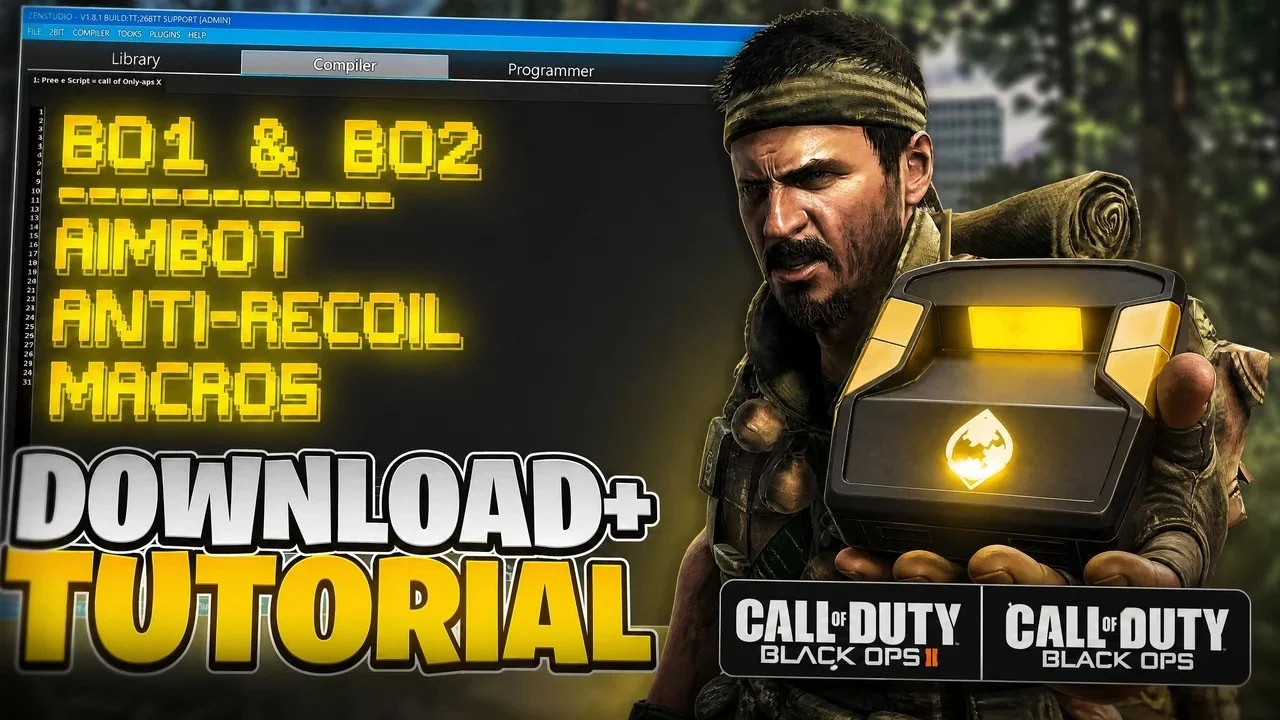
- Close Zen Studio if it's open. It can hold the device connection and lock the browser out.
- Try another USB port, and skip hubs where you can.
- Try a different browser if the first one never prompts for the device.
- Still stuck? Join the Discord at https://discord.gg/MMJCbpaw6e. It's at 6,066 members as of today, and support runs there daily.
Browser install compared with other install methods
VeraScripts makes the scripts in the first row of this table. The rest describe their own install process on their own sites, as of 2026-09-17.
| Script | Maker | Install method, as of 2026-09-17 |
|---|---|---|
| Demon, Fadeaway, Vortex, Breach, Outpost, Ascend, Reaper, Rewind | VeraScripts | Browser flasher, Discord login, pick a slot, no Zen Studio |
| Peak | SkyGPC | Single .gpc file, flash via Zen Studio |
| yew2K | yew.gg | Web programmer, one-time purchase, no downloads |
| Ark | Ark | Write to Zen once via Zen Studio |
| GreenLock 2K27 | GreenLock | Whop purchase then Zen Studio, about 5 minutes on their site |
| Laser Elite | ScarZens | Purchase, redeem via Discord bot |
| Viper | Elite Cronus | Instant delivery plus a live 1-on-1 Discord setup call |
| Hades MW4 | Hades | Whop checkout, load via Zen Studio once |
| Luna Elite | ScarZens | Instant download, redeemed via Discord bot |
| Scar-Rust | ScarZens | Instant download, redeemed via Discord bot |
| XN Scripts Apex | XN Scripts | Instant delivery via email, load onto device manually |
My take: a browser install has fewer places to go wrong than a Zen Studio install, because there's no separate program to open and no compile step between download and device. That's a design choice, not a guess.
How updates work afterwards
Every new one-time purchase includes permanent access, updates, and support. You don't pay again for a new build of something you already own.
Updating uses the same flow as installing. Open the flasher, connect through the programming port, pick the slot the script already lives in, and flash. The new build replaces the old one in that slot.
Vera+ lists a weekly update cadence and includes future products when they're ready, so one license covers new scripts as well as new builds of the ones you already have.
Settings are built to survive updates where the script supports it. Fadeaway lists profiles that survive updates. Vortex lists versioned saves. Rewind lists crash-resistant saving.
Each product page shows a last updated date. As of 2026-09-30, Fadeaway (build 2.5), Demon (V6.0), Reaper (V1.5.2) and Ascend (V3.0) show September 30, and Vortex (V5.1) and Outpost (V1.2) show September 29.
Compare the build shown on the product page against what your Zen displays. If they differ, reflash.
Pick a script and install
Vera Rewind at https://verascripts.com/rewind is free for every signed-in user and uses the same flasher as every paid script. If you play more than one game, Vera+ at https://verascripts.com/vera-plus is a one-time purchase and covers Demon, Reaper, Vortex, Fadeaway, Breach, Bastion, Outpost and Ascend, plus future drops.
Single scripts are one-time purchases too: Demon at https://verascripts.com/demon, Fadeaway at https://verascripts.com/fadeaway, Vortex at https://verascripts.com/vortex, Breach at https://verascripts.com/breach, Outpost at https://verascripts.com/rust-outpost, Ascend at https://verascripts.com/apex-ascend, and Reaper at https://verascripts.com/reaper.
Frequently asked questions
Do I need Zen Studio to install a VeraScripts script?
No. VeraScripts flashes the script from the browser. You log in with Discord, connect the Zen through the right-side programming port, pick an empty slot and flash. If Zen Studio is open on your computer, close it first, because it can hold the device connection and block the browser.
Which port and cable do I use on the Cronus Zen?
Use the programming port on the right side of the Zen, not the console-facing port. Use a USB cable that carries data, such as the one that came with the Zen. Charge-only cables are the most common reason the browser can't see the device.
What do I do if the installer does not detect my Zen?
Check that the cable is in the right-side programming port, swap to a known data cable, close Zen Studio, try another USB port without a hub, and try another browser. If it still doesn't show, ask in the VeraScripts Discord at https://discord.gg/MMJCbpaw6e, where support runs.
How long does the browser install take?
The Vortex product page lists its install at 60 seconds. The other scripts use the same flasher and the same steps, so expect a similar time once the Zen is connected and a slot is chosen.
Will installing a script erase the other slots on my Zen?
No. The installer writes to the slot you choose. Scripts on other slots stay where they are. When you update, choose the same slot the script already lives in and the new build replaces the old one.
Do I pay for updates after buying a script?
No. Every new one-time purchase includes permanent access, updates and support. Updating uses the same browser flasher as the first install. Vera+ ($99 until Sep 30, $129 from Oct 1, one time) also includes future products when they're ready and lists a weekly update cadence.